Key Takeaways:
- Perplexity Computer is available on Pro and Max plans
- Access it via the Computer icon in the left sidebar on perplexity.ai
- Click "Start a task" and describe what you want done
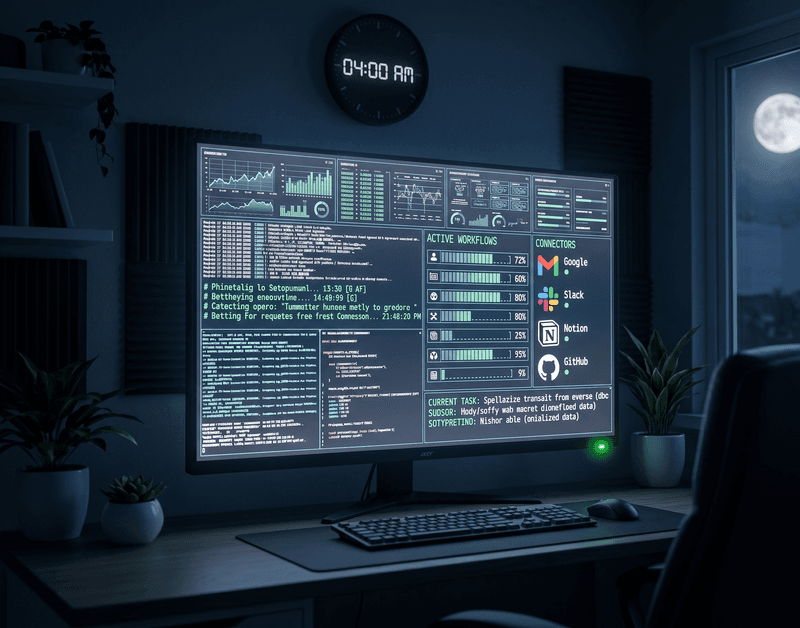
- Connect your apps like Gmail, Slack, and Notion via Connectors for actionable tasks
- It runs in the cloud, in the background, even after you close your browser

We all know how Perplexity already made searches feel so much better. Well, they didn't stop there.
They've been cooking something way more interesting, and it's called the Perplexity Computer.
It doesn't just find information for you anymore; it can actually use your computer. Like, open apps, click around, get stuff done - on your actual screen.
Wild, right? Here's how to get it set up.
What is Perplexity Computer?
Perplexity Computer is essentially an AI agent that can take control of your computer to complete tasks for you. You give it an instruction, something like "find this file and summarize it" or "book me a flight for next Friday", and it actually goes ahead and does it.
It sees your screen, moves the cursor, clicks buttons, and fills out forms. The whole thing.

Here's how to get it up and running on your computer in no time.
What you'll need before you start
Before jumping in, just make sure you have these ready:
- Perplexity Pro or Max subscription: Perplexity Computer is available on both paid plans; the free plan won't get you in.
- Any device: Works on web, iOS, and Android, so no device restrictions here.
- Stable internet connection: Non-negotiable for anything AI these days.
That's honestly it. Pretty low barrier to get started.
How to use the Perplexity Computer?
Getting to Perplexity Computer setup is easy. Here's how:
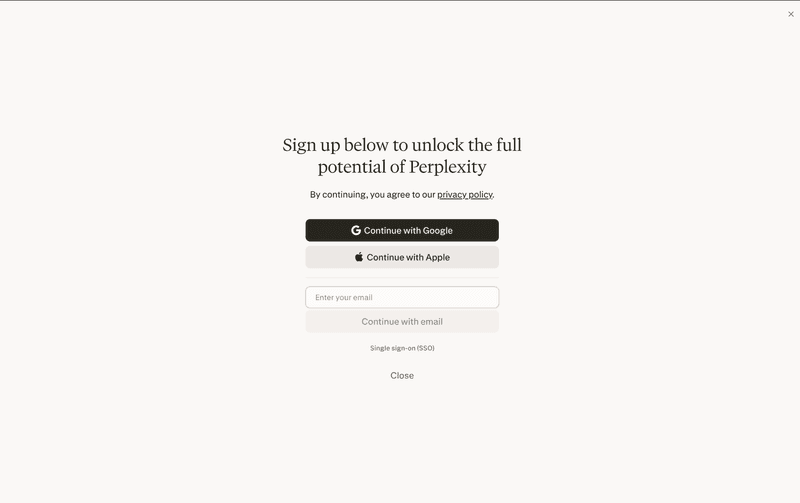
- Step 1: Sign up/log in to your Perplexity account at perplexity.ai.
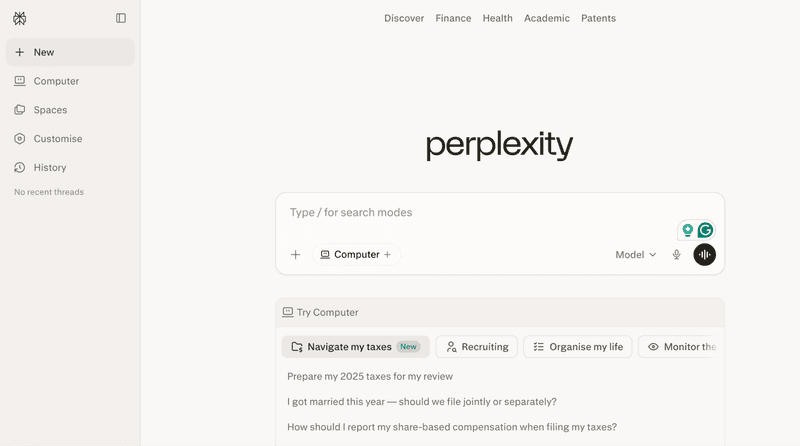
- Step 2: On the Home page, look for the Computer icon in the left sidebar and click on it.
- Step 3: Once the Computer panel opens, click on the "Start a task" field and describe what you want done.
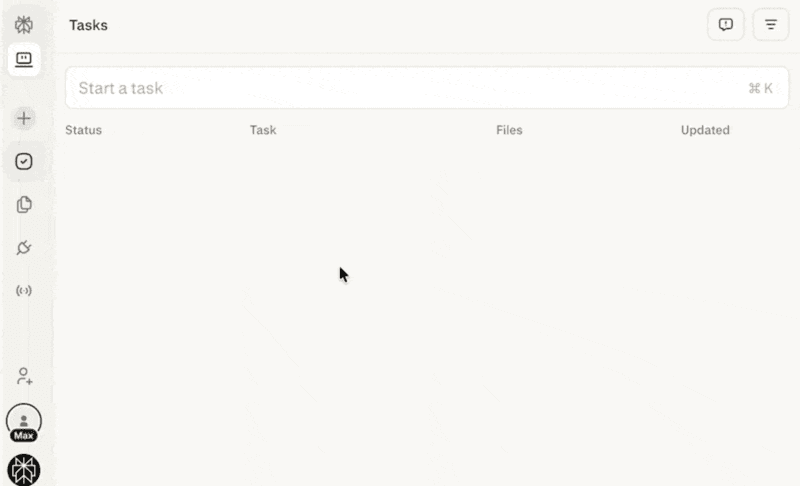
And that's it, you're in. The interface is clean and simple, so you won't feel lost once you land there.
Setting up your first task
Once you're in the Computer panel, here's how to access the Perplexity Computer:
- Connect your apps: In the Computer panel, click on Connectors in the sidebar.
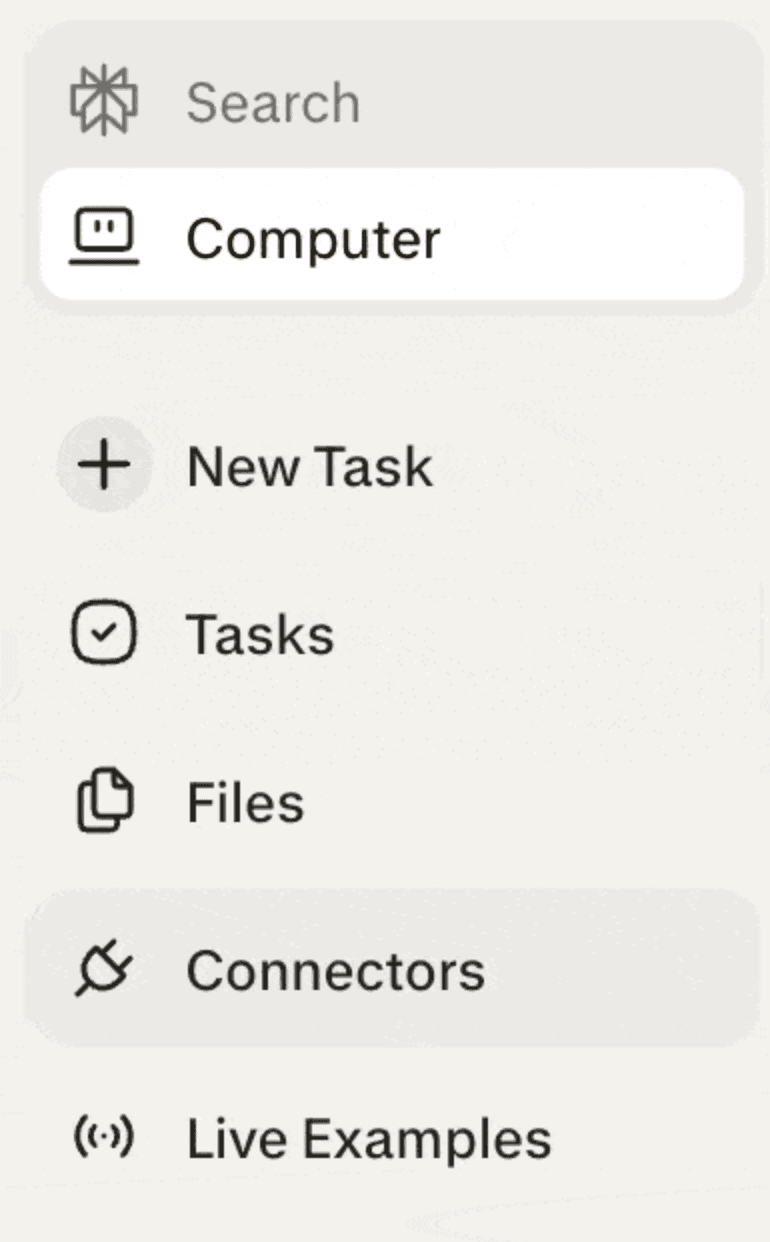
- Browse the list of available apps: Like Gmail, Slack, Notion, GitHub, and more. Click Enable next to the ones you want to connect and complete the sign-in.
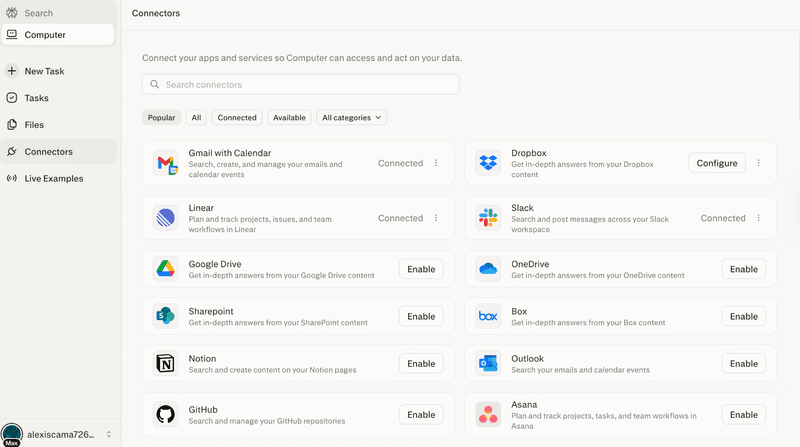
- Start a task: Click the "Start a task" field and describe what you want done in plain language. The clearer your prompt, the better the result.
- Let it run: Perplexity Computer works asynchronously, meaning it runs in the background even if you close your browser. You can come back later to find finished results waiting for you.
Note: Perplexity Computer requires no installation; it runs entirely in the cloud. That said, you can optionally install the Perplexity desktop app or PWA on your device for a more app-like experience.
Tips for first-time users
A few things worth knowing before you dive in:
- Start small: Give it simple tasks first to get a feel for how it works.
- Be specific in your prompts: The clearer your instructions, the better it performs.
- Watch what it's doing: It's controlling your screen, so keep an eye on it, especially in the beginning.
- Be mindful of privacy: Avoid giving it tasks that involve sensitive passwords or private information.
Is Perplexity Computer worth it?
Studies show that employees spend nearly 60% of their workday on repetitive, routine tasks like searching, copy-pasting, filling forms, and jumping between apps.
Perplexity Computer is specifically built to take that off your plate. It handles the busywork so you can focus on the stuff that actually matters. And the setup takes under five minutes.
For something that could meaningfully free up hours of your week, that's a pretty easy trade-off.