Key Takeaways:
- Microsoft Agent 365 gives every AI agent an identity, an owner, and an audit trail.
- Setup needs Global Administrator access, a Frontier-enrolled tenant, and an Azure subscription.
- The toolkit is the Azure CLI, the A365 CLI, DevTunnels, a custom Entra ID app, .NET 8, and sample code.
- Configuration runs through the A365 CLI, which builds the blueprint and sets agent permissions.
- The last two steps are to configure the agent and publish it for Copilot and Teams.

Your teams are spinning up AI agents in Copilot Studio, Foundry, and outside tools, yet IT may have no clear view of them. Microsoft Agent 365 can fix this gap.
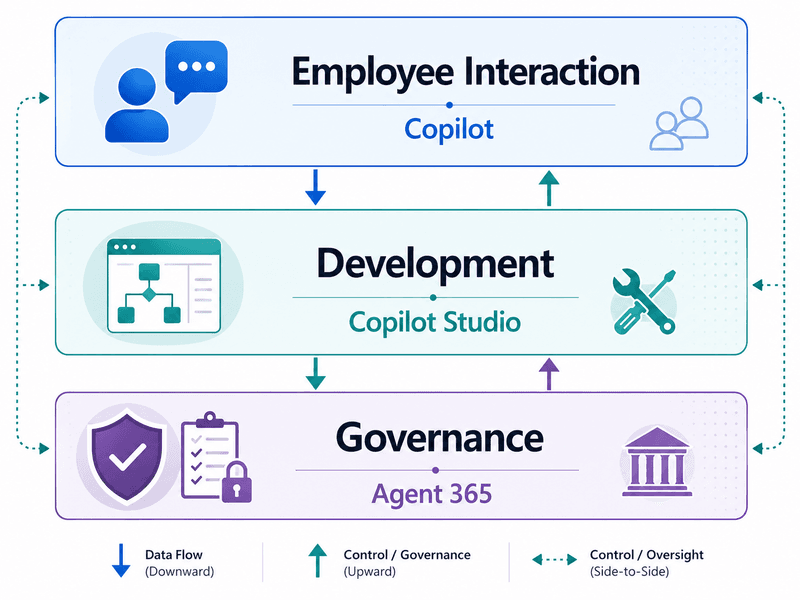
It is Microsoft's control plane for discovering, securing, governing, and operating AI agents across your enterprise. Every agent gets an identity, an owner, and a full audit trail in Microsoft Agent 365.
Announced at Ignite 2025 and generally available on May 1, 2026, it treats agents like managed members of your organization. This article covers what the platform is, the prerequisites and toolkit you need, a step-by-step setup, what agents can do, and common questions.
What is Microsoft Agent 365?
Microsoft Agent 365 is the management layer above your agents. It gives each agent a governed Entra Agent ID, access controls, and observability. This addresses agent sprawl without oversight.
It works with agents built on any stack, including a Microsoft 365 Copilot AI agent, Foundry, or third-party tools. Admins can spot shadow agents, apply Conditional Access, and review what each agent covers.
Pre-requisites before setup and configuration
You require access to certain software first. Ensure you have the following before setup:
- An account with the Global Administrator role
- Tenant enrolled in the Frontier early-access program
- Azure subscription to provision resources
- PowerShell 7.5 or later
- Visual Studio 2022 or 2026
The Microsoft Agent 365 toolkit you will need for setup and configuration
The Microsoft Agent 365 toolkit is a short list of command-line tools and components. Each handles a specific part of building, hosting, and authenticating your agent.
Azure CLI
Install the Azure CLI first. It logs you in to Azure and lets the A365 CLI scaffold the hosting infrastructure your agent uses.
A365 CLI
The A365 CLI is the workhorse for initializing, configuring, and developing your agent. Install the pre-release build, since some development commands are missing from the stable release.
DevTunnels
DevTunnels proxies cloud traffic to your local machine, much like ngrok. It lets the platform reach your agent code while you debug locally.
Custom A365 Entra ID application
You need a custom Entra ID application to authenticate the A365 CLI. Set it up in the Entra admin center, and grant delegated permissions.
.NET 8
The A365 CLI depends on the .NET 8 runtime. Install the .NET Desktop Runtime and the ASP.NET Core Runtime so the tooling runs cleanly.
Agent 365 source code
Finally, clone a sample from the Agent365-Samples repository on GitHub. Use a short path such as C:\dev to avoid long file-path errors.
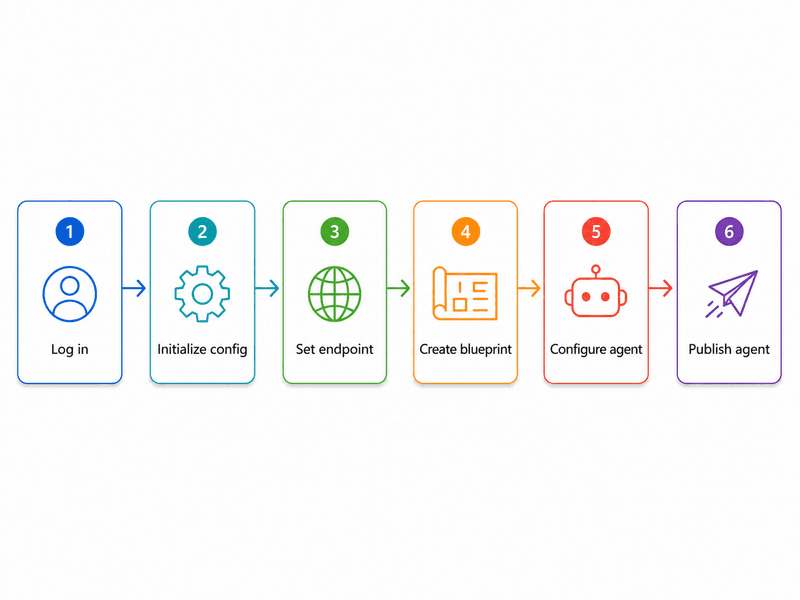
6-Step guide to configuring and setting up Microsoft Agent 365
Here is a step-by-step guide for Microsoft Agent 365:
Step 1: Log in and select your subscription
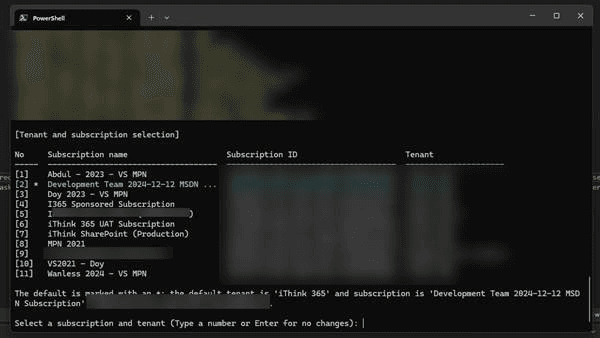
Run Az login and pick your account. Then set the default Azure subscription you want to use.
Step 2: Initialize the A365 configuration
Run A365 config init. Supply your custom app's client ID, name the agent, point to the cloned project, and choose a resource group in a supported region such as swedencentral.
Step 3: Set the messaging endpoint
Choose not to create a web app so you can run locally. When prompted, paste your DevTunnel URL as the messaging endpoint. Verify it with A365 config display.
Step 4: Create the agent blueprint
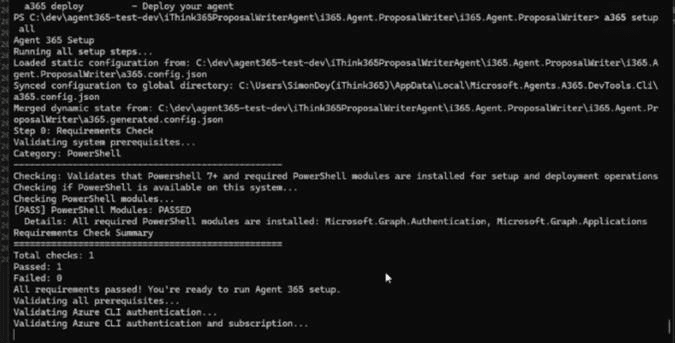
Run A365 setup all. This builds the blueprint, sets agent and MCP permissions, and registers the bot. The blueprint is the IT-approved template your agents inherit from.
Step 5: Configure the agent
Now configure the agent to run. In the Teams Developer Portal, open your blueprint, set the agent type to Bot-Based, and use the blueprint ID as the bot ID. Add your Azure OpenAI details to appsettings.json so the agent can reason.
Step 6: Publish the agent
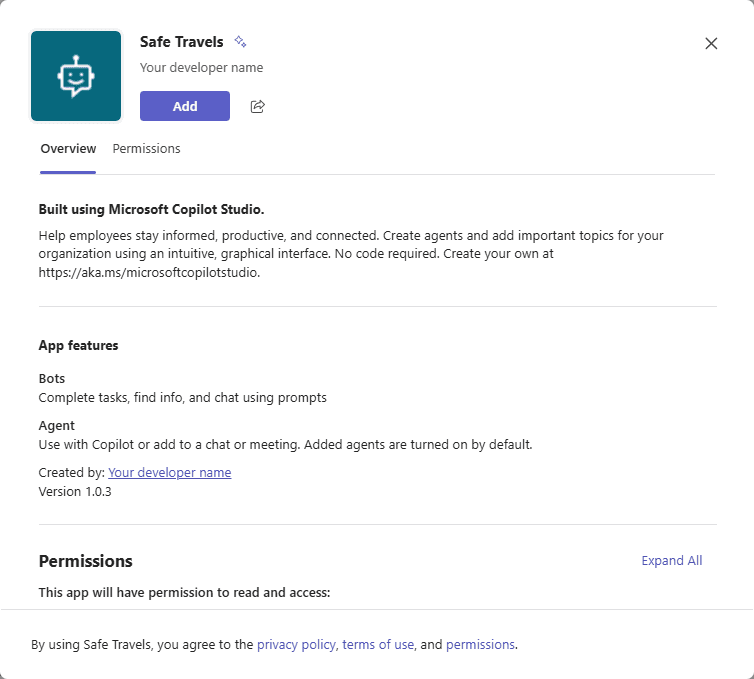
Run A365 publish to create the Microsoft 365 app package for Copilot and Teams. Keep the short name under 30 characters, or it fails. Activate the blueprint, then create an instance to @mention the agent in Teams.
Exploring what you can do with a Microsoft Agent 365 agent
Microsoft Agent 365 acts like a colleague, with its own mailbox and identity. It can read and reply to Teams messages, emails, and Word comments through the Notifications API.
Start with one narrow, high-value agent rather than a broad rollout. A proposal reviewer or inbox triage helper proves value fast. Then define blueprint policies as reusable templates, so future agents inherit DLP and access rules by default.
As the tooling matures, expect Copilot Studio to fold into this same model, so the governance habits you build now pay off later.
Frequently asked questions about Microsoft Agent 365
How does Microsoft 365 Agent work?
An agent gets a blueprint, an Entra identity, and a messaging endpoint. When a user @mentions it or sends a notification, the platform routes the event to the agent's code, which responds using its model and permitted tools.
Do you need the Microsoft 365 Frontier license for agent configuration?
Yes. Your tenant must be enrolled in the Frontier early-access program to provision and configure agents during the preview. Each user also needs an Agent 365 license, and security controls require Entra Agent ID licensing.
Which is better out of a Microsoft-hosted agent and a self-hosted agent?
It depends on control. A Microsoft-hosted agent in Foundry handles infrastructure and lifecycle for you, which suits teams that want speed. A self-hosted agent gives you full control over hosting, model choice, and debugging.
What is the pricing for Microsoft Agent 365?
Microsoft Agent 365 is a $15 per user per month plan, generally available since May 1, 2026. Each user working with agents needs that license.
Disclaimer: This article is AI-assisted content and may contain errors. Details are drawn from Microsoft Learn documentation on Microsoft Agent 365 and Entra Agent ID, and from Simon Doy's developer blog (January 2026). Microsoft Agent 365 features are still rolling out, and availability may vary by tenant, license, and region.