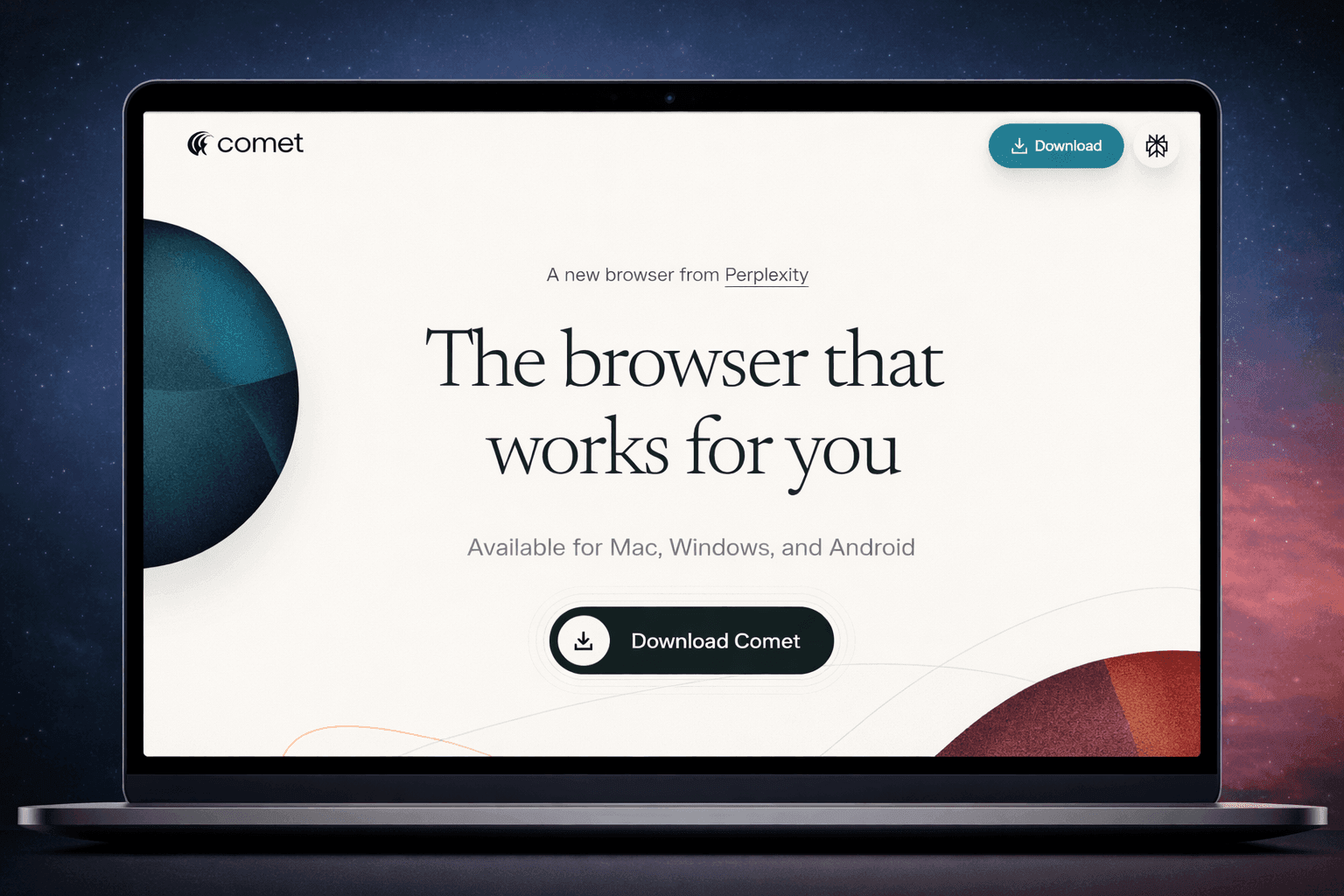
Key facts:
- Comet launched on July 9, 2025; AI-native browser.
- Free for all since October 2, 2025; Comet Plus $5/month optional
- Chromium-based; supports most Chrome extensions.
- One-click import from Chrome via Quick Start.
- Privacy controls and no sign-in required to browse.
- Ad/track blocker available in Settings.
Your tabs aren’t the problem. The gaps between reading and doing are. Comet Browser fixes that, but not where most users look. The power hides in Shortcuts you trigger with “/”, an Assistant that understands the page you’re on, Agents that act with approval, and @tab targeting that keeps answers anchored to your research.
Add instant page and video summaries, plus simple privacy defaults, and your work accelerates without chaos. This blog, I’ll show you the hidden features of comet browser fewer than 10% of users touch, and how to put them to work this week.
What is Perplexity Comet?
Comet is Perplexity’s AI-native, Chromium-based browser. Your Chrome muscle memory and most extensions carry over, but you also get an in-page Assistant for analysis and an Agent for execution. Think of it as “read vs. do,” fused into your workflow.
10 hidden features of Comet browser
Under the surface, Comet has a lot more going on than most people realize. Here are the features of Comet browser that are worth digging up:
1. Saved Shortcuts (mini agents)
Shortcuts are reusable, multi-step commands you trigger with “/”. Think of them as portable SOPs you can run anywhere- like /tldr for quick page summaries, /email-draft for thread replies, or /compare-vendors for structured comparison tables. Share them across pods to keep workflows consistent and outputs standardized.
2. Assistant vs. Agent, on purpose
Use the Assistant for analysis- summaries, comparisons, outlines. And you can use Agents for execution- form fills, emails, bookings, and purchases, always with your approval.
3. One-click Chrome import
You don’t need to start from scratch. Import your bookmarks, passwords, history, preferences, and even extensions- all at once during setup or later in Settings. It saves you from the usual “migration tax” that makes switching tools painful.
4. Side-panel page controls
The Assistant sidebar stays contextually linked to the page you’re on. You can ask for follow-ups, pull sources, or draft an email that references what you’re viewing- without ever switching tabs. The power move? You can answer directly in the panel, then “approve” the Agent to send or schedule it.
5. Instant page summaries
There’s a “Summarize this page” control in the top-right corner of the UI. This feature is especially useful when scanning vendor documentation, research reports, or long-form reviews- helping you prioritize what deserves deeper attention.
Combine it with the “/tldr” shortcut to standardize page briefs across your team, making summaries easier to compare, archive, or share.
6. Video summarization
Another hidden feature of Comet browser is that it can summarize videos you’ve watched. It's ideal for product announcements, earnings calls, or long briefings. It also delivers a time-stamped outline with key takeaways, helping teams grasp the essentials without sitting through hours of footage.
You can note action items directly from the summary and start an email or follow-up in the same panel- so insights turn into action instantly.
7. Smart tab housekeeping
Close stale tabs and group related research into collections. It’s a small but powerful boost for focus. Try making it a weekly habit- collapse old threads, bundle active projects, and keep one clean workspace per initiative.
8. Calendar-aware prompts
Comet can pull up your upcoming meetings, check your availability, and surface context, like notes, open tabs, or recent news- related to who you’re meeting. For founders and teams, it means walking into every call prepared with an instant brief. You can even approve calendar holds or updates directly from the sidebar.
9. Chrome extensions, still there
Comet is built on Chromium, so most Chrome extensions install directly from the Chrome Web Store and work seamlessly. Your password manager, SEO toolkit, and note-taking apps stay right where they are, keeping your existing workflows intact and onboarding effortless for teams.
10. Practical privacy defaults
You can browse without signing in and manage data deletion and cookie preferences in settings. Combine those controls with a cautious Agent policy- human-in-the-loop by default for a defensible posture.
The bottom line
Hidden features are where Comet pays off: saved Shortcuts, side-panel actions, instant page and video summaries, tab hygiene, calendar context, and sane privacy controls. Pick three, turn them into SOPs, and measure time-to-draft this quarter. I’d start with Shortcuts, summaries, and collections- fast wins you’ll feel this week.
If your content doesn't convert when AI browsers surface it, you're leaving revenue on the table. Reach out to WrittenlyHub to ensure your pages are set up to convert in Comet and every AI search engine.
FAQs
1. Can Comet import my Chrome setup?
Yes, one-click import brings bookmarks, passwords, history, preferences, and extensions.
2. Does it support Chrome extensions?
Yes, Comet is Chromium-based and supports most Chrome extensions.
3. Where do I enable ad blocking?
Settings → Privacy → Ad block; adjust preferences there.
4. Can Comet work with Gmail and Calendar?
Yes, connect both to draft and schedule with approval from the sidebar.